 EditAll
How to put one preset on all your iPhone photos.
Open EditAll, allow access to your photo library, and choose a look. Every photo already shows it as you browse, and the originals stay as they were. Save or share the ones you want.
By Jonnathan Griffin, who makes EditAll. Updated October 31, 2026.
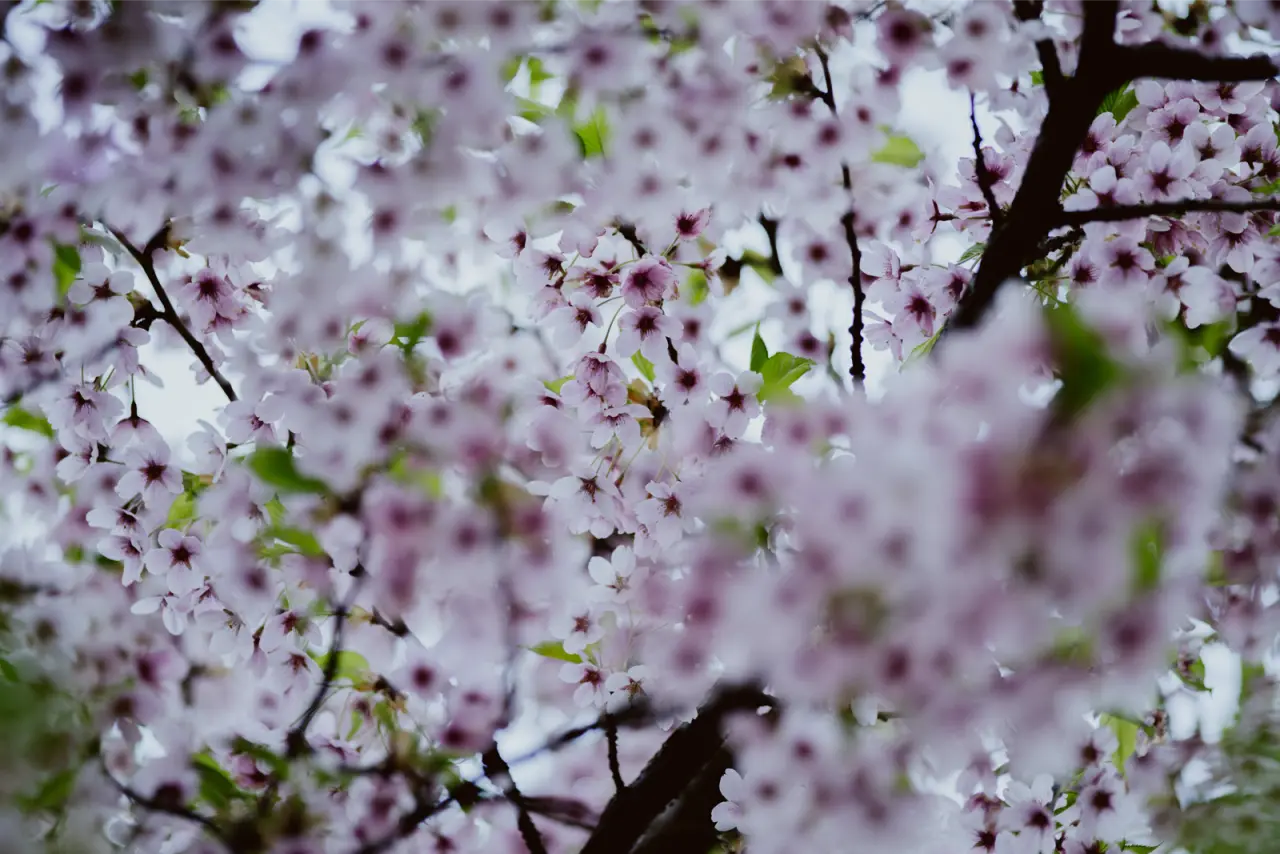
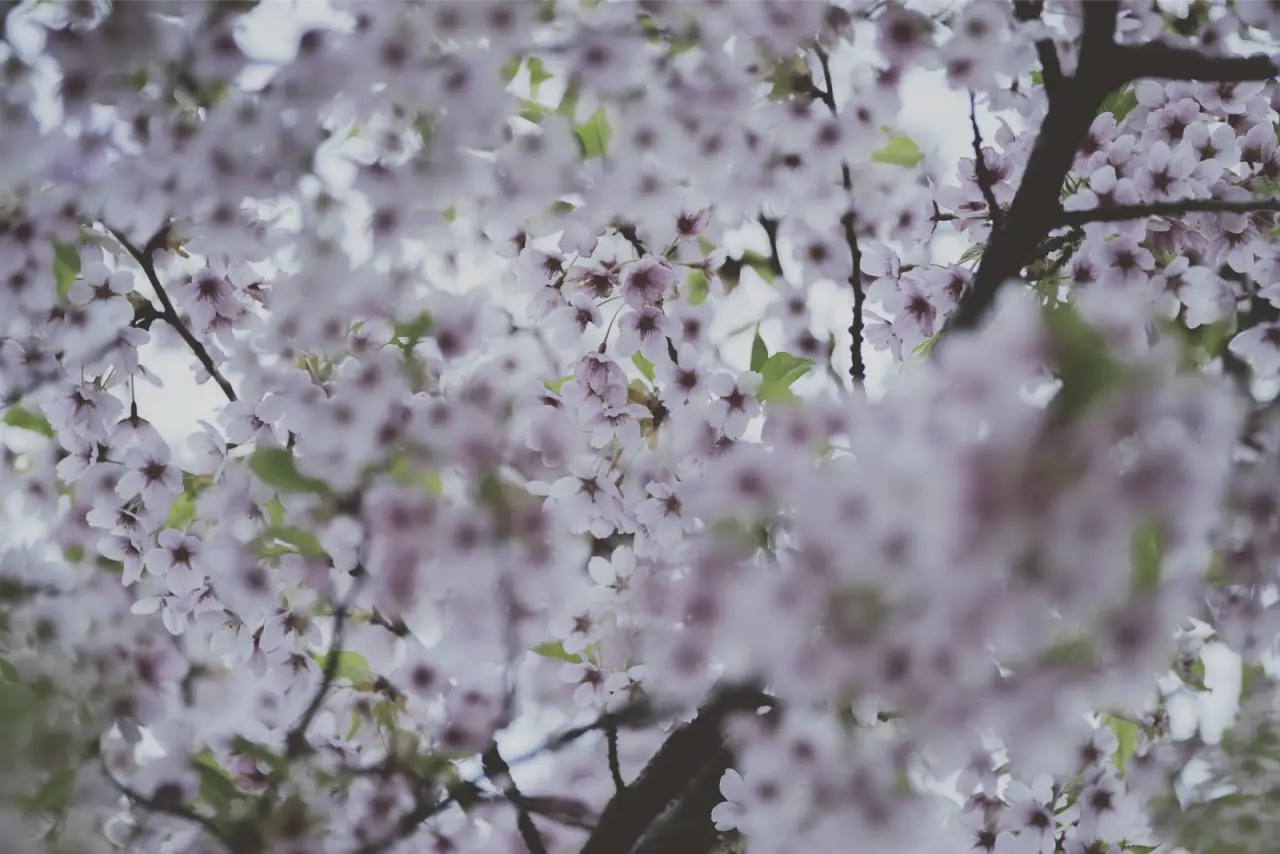
The usual way.
In most editors you open one photo, apply a preset, copy its settings, select the rest, paste, and export. That works for a dozen photos. For a whole trip, or years of photos, it is a lot of steps.
With EditAll.
Choose a look. EditAll shows your Apple Photos library with that look on every photo and video, as you scroll, in Timeline, and in search. Nothing is imported or copied.
Switch the look and the whole library changes with it. When one photo needs more, open it and adjust tone, color, and HSL, or save your own preset. Lightroom presets can be converted and used the same way.
Select the photos you want and save or share them. The originals in Apple Photos stay untouched.
See it on your own photos.
EditAll is free to download. Your first 30 days include every Pro tool, and nothing renews when they end.

Questions
Can I apply a filter to all my photos at once on iPhone?
In the Photos app you can copy edits from one photo and paste them onto others you select. EditAll goes further: it shows a film look on every photo in your library at once, and you save or share the ones you want.
Does EditAll change my original photos?
No. Your originals stay as they are in Apple Photos. The look is applied to what you save or share.
Are my photos uploaded?
No. EditAll edits on your device, has no account, and shows no ads.